
Email Print Bookmark

Microsoft Outlook 2003 Level 1

Who should do this course?

This course is intended for people who wish to improve their knowledge and skills in the use of Outlook. Little or no knowledge of Outlook is required.

About the course:

This course aims to increase your productivity by providing the skills and knowledge that enable you to manage your e-mail, schedule your appointments, and keep track of your contact information.

Learning outcomes:

Upon successful completion of this course, participants will be able to:

  • start Outlook 2003 and navigate the various features
  • create and send email messages
  • receive emails into your Inbox
  • work with the Calendar feature in Outlook 2003
  • schedule appointments and events in your calendar
  • add, edit and delete contacts and contact details
  • create a to do list using the Tasks feature of Outlook
  • access and use the help system and work safely with your computer
 

Quick Facts

Level: Beginner Price: $385.00 incl GST You will receive:
Duration: 1 Days Discounts*: 2 Students - 10% - Certificate of completion
Size: 10   3 Students - 15% - Training Manual
Times: 9.00am to 5.00pm approx   4 Students - 20% - 12 months FREE email support*
Pre-requisites: Refer to course description Bonus: 2 FREE - FREE class re-sit (if necessary)*
      Movie Tickets Course Brochure:
     
Outlook_2003_L1.pdf
         
 * Conditions apply.
 

Upcoming Courses

Sydney

Level 11, 32 Walker Street
North Sydney
View map

Date:
24-24 Jun 10

Melbourne

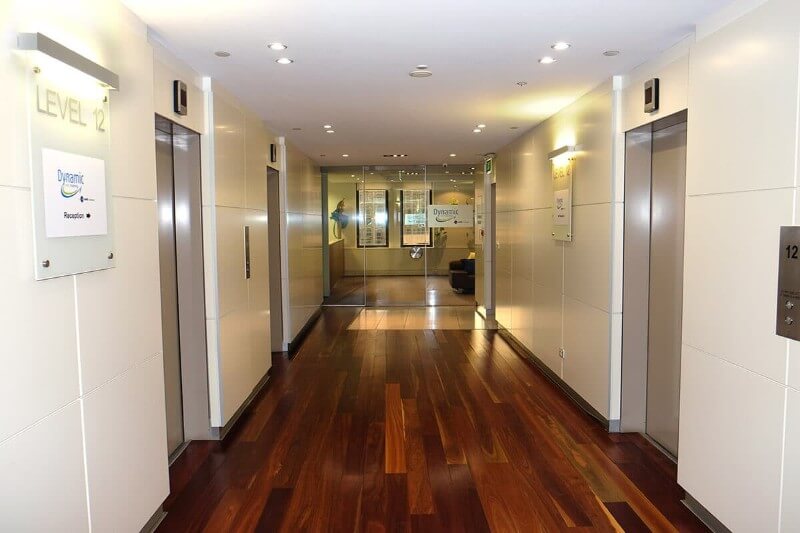
Level 12, 379 Collins Street
Melbourne
View map

Date:
10-10 Jun 10

Brisbane

C/- Support Technology, Level 6, 371 Queen St
Brisbane
View map

Date:
27-27 May 10

Canberra

C/- Training Choice, Level 12, 15 London Circuit
Canberra
View map

Date: upon demand

Adelaide

C/- Mindfull Computer & Seminar, Level 4, 74 Pirie Street
Adelaide
View map

Date: upon demand

For more information on dates or locations, please call 1300 888 724 or enquire online.

Course Units

Unit 1: Email Concepts
- Email Addresses
- The Benefits of Email
- Spamming
- Email Etiquette
- Digital Signatures
Unit 2: Outlook 2007 Basics
- Understanding Outlook 2007
- Starting Outlook
- Common Outlook 2007 Screen Elements
- Going to Outlook Features
- Navigating to Outlook Features
- The Navigation Pane
- The To-Do Bar
- The Mail Screen
- The Calendar Screen
- The Contacts Screen
- The Tasks Screen
- The Notes Screen
- Understanding Email
- The Outlook Today Screen
- Exiting Outlook
Unit 3: Sending Email
- Email in Outlook
- How Outlook Mail Works
- Composing an Email Message
- The Message Window
- Creating a New Message
- Checking the Spelling
- Adding an Attachment to a Message
- Adding Importance
- Requesting Message Receipts
- Sending the Message
- Creating an AutoSignature
- Using an AutoSignature
- Removing an AutoSignature
- Sending a Courtesy Copy
- Sending a Blind Copy
Unit 4: Receiving Email
- Understanding the Inbox
- Accessing the Inbox
- Retrieving Email
- Opening an Outlook Data File
- Adjusting the Message View
- Viewing Messages in Groups
- Reading Messages
- Opening Several Messages
- Navigating Within a Message
- Finding Related Messages
- Replying to a Message
- Replying to All Messages
- Replying Without the Original Message
- Adding Comments to Replies
- Getting Replies Sent to Another Address
- Forwarding Messages
- Marking Messages As Unread
Unit 5: Working with Attachments
- Understanding Message Attachments
- Inserting a File Attachment
- Attaching Other Outlook Items
- Previewing Attachments
- Saving a Message Attachment
- Opening a Message Attachment
Unit 6: Flagging Messages
- Flagging Messages in a Message List
- Sending a Message with a Flag
- Adding a Quick Click Flag
- Adding a Reminder to your Messages
- Removing a Flag
Unit 7: Junk Email
- Spamming And Junk Email
- Phishing And Junk Email
- Understanding Junk Email Options
- Marking Messages As Junk Mail
- Marking Messages As Safe
- Managing the Senders Lists
- Importing a Blocked Senders List
- Exporting a Blocked Senders List
- Deleting Junk Email
Unit 8: Working with the Calendar
- Accessing the Calendar
- Changing Calendar Components
- Displaying Specific Dates
- Navigating Within a Calendar
- Changing the Current View
- Creating a Second Time Zone
- Removing a Time Zone
- Creating a New Calendar
- Deleting a Calendar
- Working with Multiple Calendars
Unit 9: Contacts
- Understanding the Contact Form
- Understanding Electronic Business Cards
- Viewing your Contacts
- Creating a New Contact
- Entering Contact Details
- Editing Contact Details
- Inserting a Contact Picture
- Adding Contacts for an Existing Company
- Changing a Business Card Layout
- Deleting an Unwanted Contact
- Recovering a Deleted Contact
- Printing Contact Details
Unit 10: Tasks
- Viewing Tasks
- Creating Simple Tasks
- Typing Tasks Directly
- Changing Task Views
- Sorting Tasks
- Completing Tasks
- Deleting Tasks
- Printing a Task List
Man and woman sitting at a computer SEEK logo